

Here is what usually happens: someone's Netflix keeps buffering, they Google 'internet speed test,' run a speed test, see 120 Mbps, and conclude everything is fine. Then they spend 45 minutes on hold with their ISP before giving up. The number was not wrong. They were just testing the wrong thing. This guide is about testing your connection in a way that actually tells you something useful.
What a Speed Test Is Actually Measuring

When you click 'go' on any speed test, it sends chunks of data between your device and a remote server, times the transfers, and reports four values. Most people only look at one of them.
- ✓Download (Mbps) — Data pulled to your device. Streaming, browsing, downloads. The number your ISP advertises.
- ✓Upload (Mbps) — Data pushed from your device. Video calls, cloud backups, Zoom. Often asymmetric on home plans.
- ✓Ping / Latency (ms) — Round-trip time for a small packet. Under 20ms is excellent. Above 100ms, things feel sluggish.
- ✓Jitter (ms) — How much ping varies over time. High jitter breaks calls even when the average looks fine.
The Fifth Metric Nobody Tests: Bufferbloat
Almost nobody tests bufferbloat, but it is often the real cause of 'my internet feels slow.' Bufferbloat measures how badly your latency spikes when your connection is under load — like when someone in your house starts a video stream while you are on a call. A connection with 8ms idle ping but 400ms ping during a download has severe bufferbloat. A router graded F for bufferbloat can make a 300+ Mbps connection feel terrible on calls, while one with good queue management fixes the problem overnight — same ISP, same plan.
Why Your Speed Test Result Is Probably Wrong
The tool is not broken — the conditions were off. There are four common reasons speed tests mislead people, and understanding them is more useful than running the same test again.
You Tested on Wi-Fi
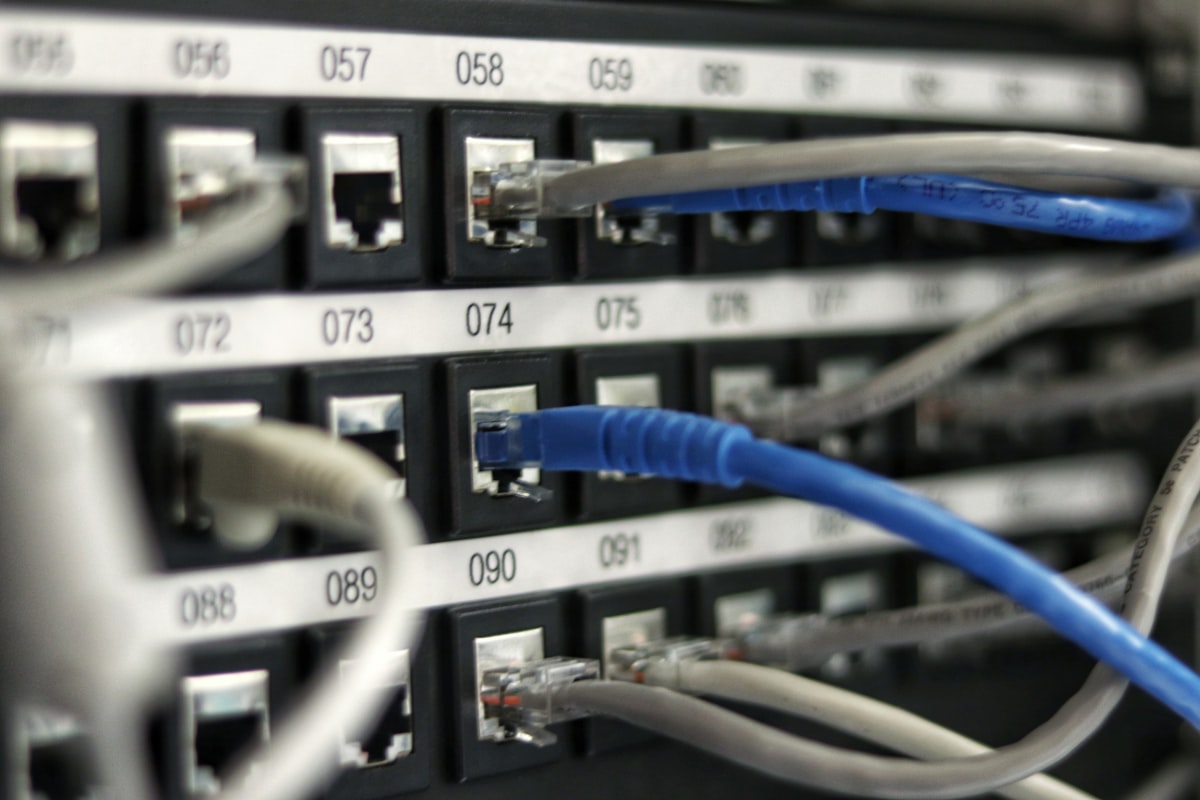
When you run a speed test on Wi-Fi, you are measuring how fast data moves between your laptop and your router — not between your router and the internet. Those are two completely different pipes. A 2.4 GHz signal in a dense apartment building can cap out at 30 Mbps regardless of what your ISP is delivering. Before blaming your provider, plug in over Ethernet and test again. This one step alone will solve the mystery for a surprising number of people.
The Server Was Cherry-Picked
Most speed test tools select the nearest server automatically. ISPs know this, and many have extremely fast peering connections to those nearby servers specifically. Your actual streaming or browsing traffic takes a completely different path. If your auto-selected test shows 500 Mbps but video buffers at 1080p, this is likely why. Manually test against servers in other cities, or use Fast.com, which routes through the actual CDN servers that streaming services use.
You Tested at the Wrong Time of Day
Cable and fiber connections share infrastructure between households. Between 7pm and 11pm, when everyone is home and streaming, speeds can drop 30–60% compared to off-peak hours. A single test at lunch tells you nothing about the experience you actually live with. Run tests across multiple time windows and pay more attention to the worst results than the best ones. The lowest result you see over a week of testing is more informative than the highest.
Something Was Running in the Background
Cloud backups, system updates, a game client patching silently — any of these will tank a speed test result. Close everything you can before running, and if possible, disconnect other devices from the network. A test run while your system is syncing files is measuring the wrong thing entirely.
The Tools — What Each One Is Good For

Each speed test tool has a different strength. Using the right one for your specific question gets you a more useful answer than defaulting to whichever site you heard of first.
Cloudflare Speed Test (speed.cloudflare.com)
This is the tool to start with. It measures download, upload, ping, jitter, packet loss, and latency under load — all in a single test, no account required. It runs on Cloudflare's edge network, which is geographically distributed and not ISP-adjacent like most other test servers, making results harder to game through peering optimization. The loaded latency number tells you immediately whether your slowness is a bandwidth issue or a queuing issue.
Speedtest by Ookla (speedtest.net)
The reference standard. If you are filing a complaint with your provider or comparing notes with someone else, Ookla is the number everyone recognizes. The test itself is solid — just be deliberate about server selection. Always test against multiple servers manually, not just the auto-selected one. The desktop app runs closer to the network interface level than the browser version, which gives slightly more accurate results.
Fast.com
Built to test download speed using the same CDN servers that major streaming services actually use. If you want to know why your streaming keeps dropping to 480p specifically, this is the most direct answer. Click 'show more info' after the test completes to see upload speed and latency as well.
Waveform Bufferbloat Test (waveform.com/tools/bufferbloat)
Runs a download and upload flood simultaneously while measuring your ping throughout, then grades the result A through F. If you have calls that cut out whenever someone starts a download, or gaming lag that only happens when other people are using the internet, run this test before anything else. Most people have never heard of it — it should be the first thing a support agent asks about, but it almost never is.
LibreSpeed (librespeed.org)
Fully open source, no telemetry, no account required. You can self-host it on a server inside your network to test LAN throughput independently of your ISP — useful for determining whether a bottleneck is on your internal network or your WAN connection.
How to Run a Test That Actually Means Something

Follow these steps in order. Each one removes a variable that can make results misleading.
- ✓Plug in via Ethernet — Connect directly to your router or modem with an Ethernet cable. Skip this only if you specifically want to measure Wi-Fi performance.
- ✓Close background apps — Close every app that uses bandwidth. On other devices in the house too, if possible.
- ✓Run Cloudflare Speed Test first — Note the download, upload, ping, jitter, and loaded ping values.
- ✓Run a second test with a distant server — A big gap between your nearest and a remote server suggests ISP peering optimization is inflating your local result.
- ✓Run the Waveform Bufferbloat Test — If you grade below a B, that is your first thing to fix.
- ✓Repeat at peak hours (7pm–10pm) — A 40%+ speed drop compared to off-peak means congestion on your ISP's network, not your equipment.
What Your Numbers Should Actually Look Like
These are minimum requirements for common use cases. A connection with a high speed rating but poor bufferbloat will often perform worse on calls and gaming than a slower connection with good queue management.
- ✓4K streaming: 25 Mbps download per stream. Upload and ping are not critical.
- ✓Video calls at 1080p: 3–5 Mbps download and upload, under 80ms ping, low jitter.
- ✓Competitive online gaming: 5–10 Mbps download, 1–2 Mbps upload, under 20ms ping, stable.
- ✓Remote desktop or VPN work: 10–25 Mbps download, 5–10 Mbps upload, under 50ms ping.
- ✓Cloud backups: Upload speed matters most — 50+ Mbps preferred for large file volumes.
If Your Numbers Are Consistently Below Your Plan

Document everything first — timestamps, which tool, which server, wired or wireless, what you received versus what you are paying for. If you consistently get under 80% of advertised speed on a wired connection during off-peak hours over several days, that is a legitimate complaint. Before calling, check your modem — older equipment degrades over time, and if you own it, log in and look at the event log for uncorrectable errors or power level warnings. Coming in with a week of timestamped data and a specific question — 'why does my performance drop 50% between 8pm and 10pm?' — is a fundamentally different conversation than calling to say your internet feels slow.